
If you want your Creative to be served via a third-party provider, you can do so by using the option Add a Third Party Script. This is the correct choice when your ad is hosted and managed on an external ad server.
You can add this type of Creative from two main locations: either from the Create Campaign wizard or under Campaign details > Creatives.
How to Add a Third Party Script
-
Select + New Creative.
-
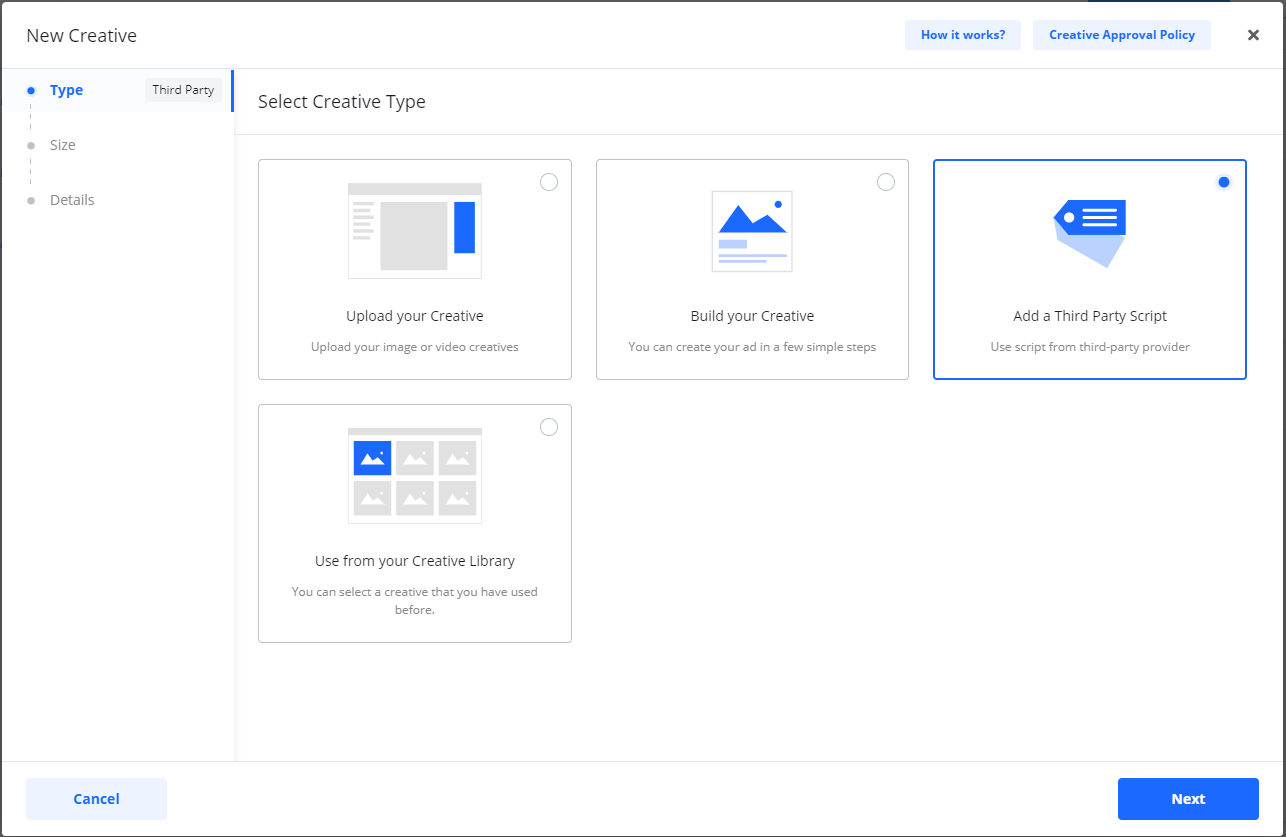
Under Creative Type, select Add a Third Party Script.
-
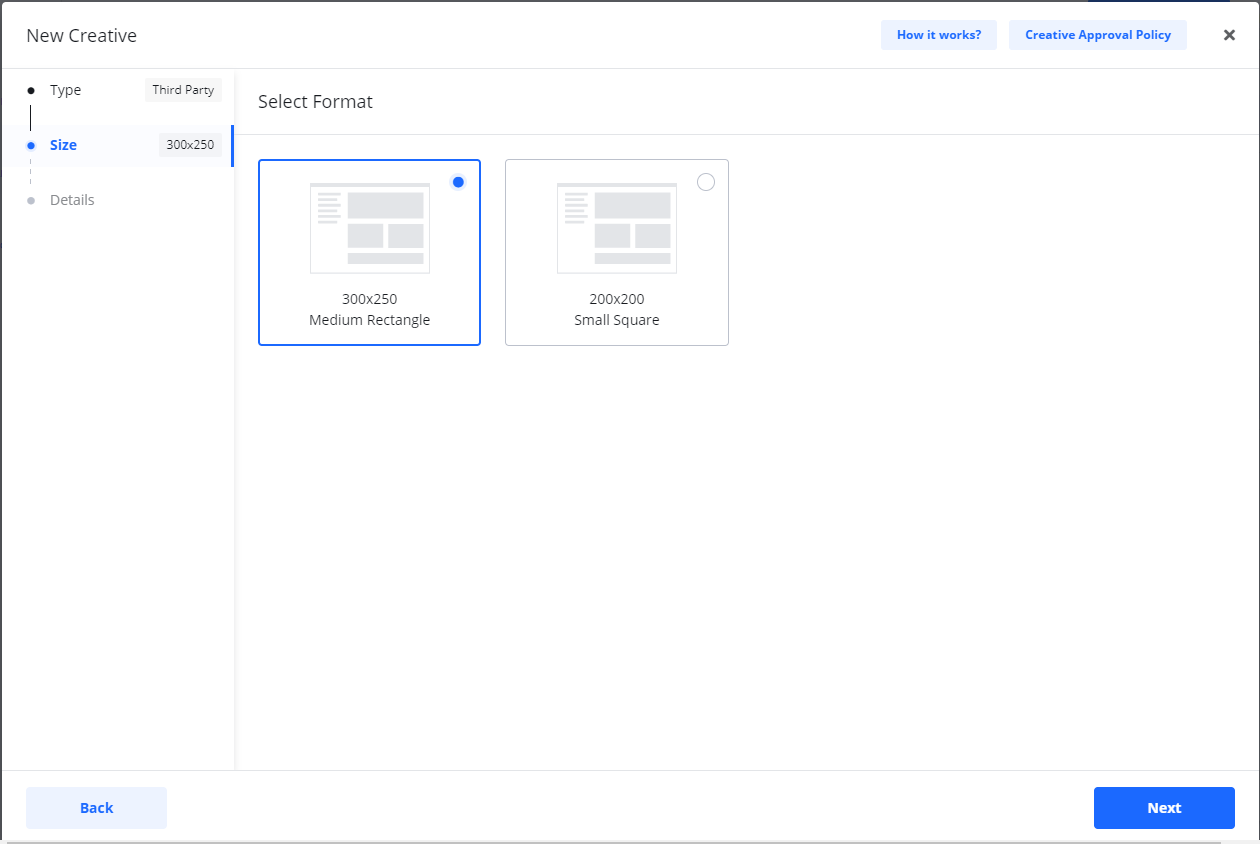
Select a Format / Size.
-
Note: If the format you are looking for is not available, check the Product step in the Create Campaign wizard to see which Creative sizes are available for that Product.
-
-
Click Next.
-
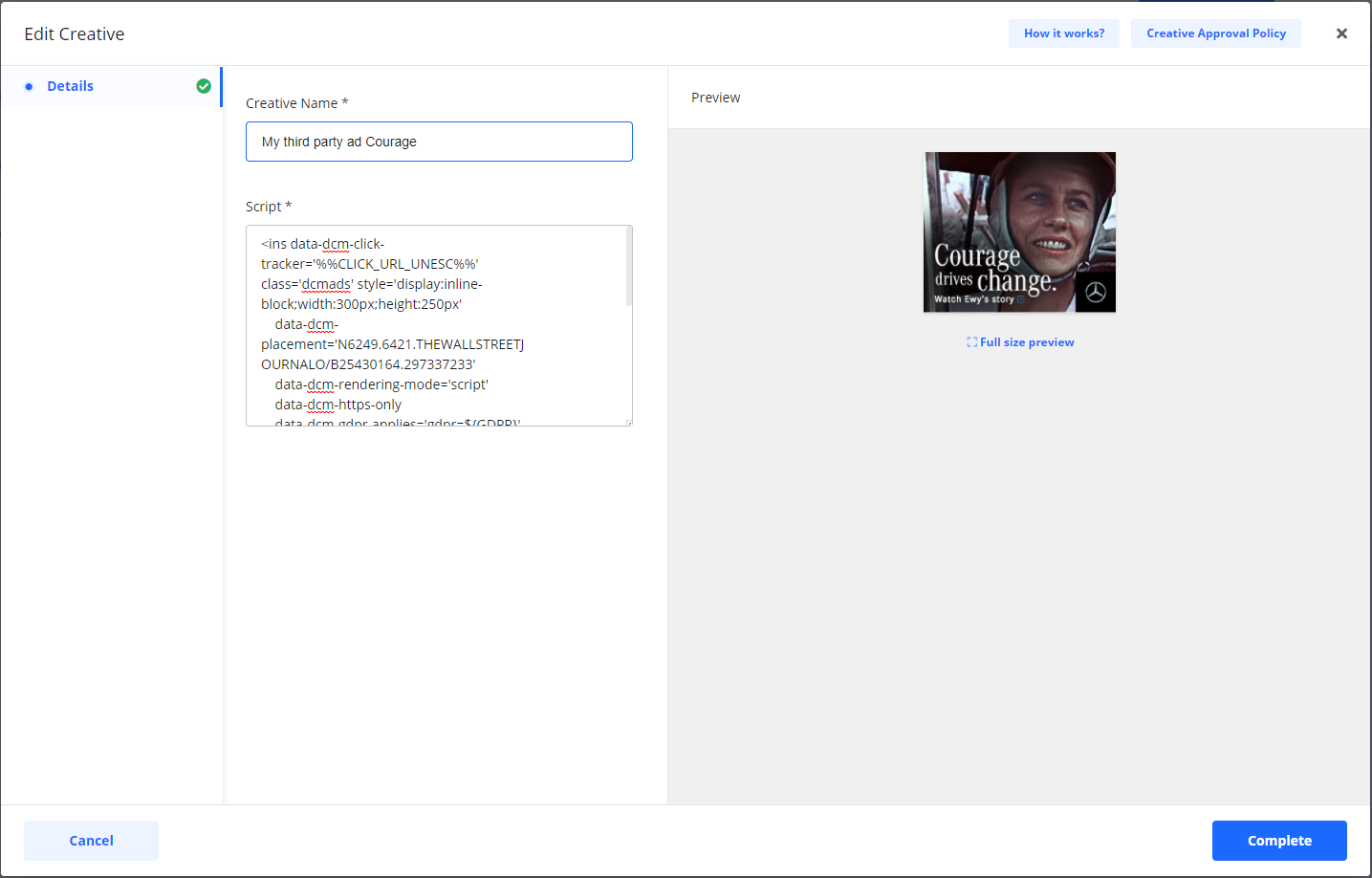
On the Details page, enter the required information:
|
Field |
Description |
|---|---|
|
Creative Name |
An internal name for the Creative that only you will see. |
|
Script |
Paste the ad script provided by the third-party ad server here. |
If the ad script is valid, you will see a preview of the ad.
-
Select Complete.
The new Creative is now added to your Campaign.

Creative statuses:
-
If your Campaign is checked out by card or set for invoice payment, the status for new Creatives will be Under Review. Creatives with this status are automatically sent for approval.
-
If you have not yet checked out the Campaign, the status of new Creatives will be Draft.
When you check out a Campaign, Draft Creatives under the Campaign will change status to Under Review and is sent for approval.
Creative Statuses After Creation
The status of your new Creatives depends on the status of your Campaign:
|
Creative Status |
Condition |
|---|---|
|
Under Review |
This status is set if your Campaign has already been checked out (paid by card or invoice). The Creative is automatically sent for approval. |
|
Draft |
This status is set if you have not yet checked out the Campaign. The status will change to Under Review after you check out the Campaign. |
You will be notified by email when a Creative is approved or, in case of rejection, the reason why.
Frequently Asked Questions
Q: When should I use the 'Add a Third Party Script' option?
A: You should use this option when your ad is not an image or video file, but rather a piece of code (a script) that you have received from an external, third-party ad server.
Q: Why don't I see the ad format/size I need?
A: The available ad sizes are determined by the Product you selected in the initial Create Campaign wizard. If a size is missing, you may need to go back to the Product selection step and choose a different Product that supports your required size.
Q: How can I be sure my script is working correctly?
A: After you paste the Script into the text field on the Details page, a Preview of the ad should appear. If the preview does not load, there may be an issue with the script.