
Creatives are the actual ads shown to your audience. You can add as many Creatives as you like to a Campaign, and you can add them at any time.
Depending on the type of Campaign you are setting up, different Creative options are available. You can upload images in different sizes, design your ads from scratch, use Creatives from a third-party provider, or upload videos.
Before your ad can be shown to audiences, it must be reviewed by the Publisher and either approved or rejected. You will find the Publisher’s Creative Approval Policy in the Creative wizard.
Creative types
There are basically four types of Creatives you can use for your Campaigns.
|
Creative Type |
Description |
|---|---|
|
Image ads |
Single image ads, often referred to as “banner” advertising. They typically appear as horizontal banners or as vertical banners in the side margins of a page. |
|
Video ads |
Eye-catching and effective for telling a complex story that an image ad cannot. |
|
Native ads |
A special type of ad that adopts the look and feel of the website and context in which it is shown. |
|
Third Party Scripts |
Snippets of code that serve your ads from a third-party ad server. |
The choices you make when setting up your Campaign will automatically make the most suitable Creative types available to you. This means other types like carousel ads, text ads, or search ads may also be available depending on your Campaign setup.
Add your Creatives
You can add Creatives from two main locations:
-
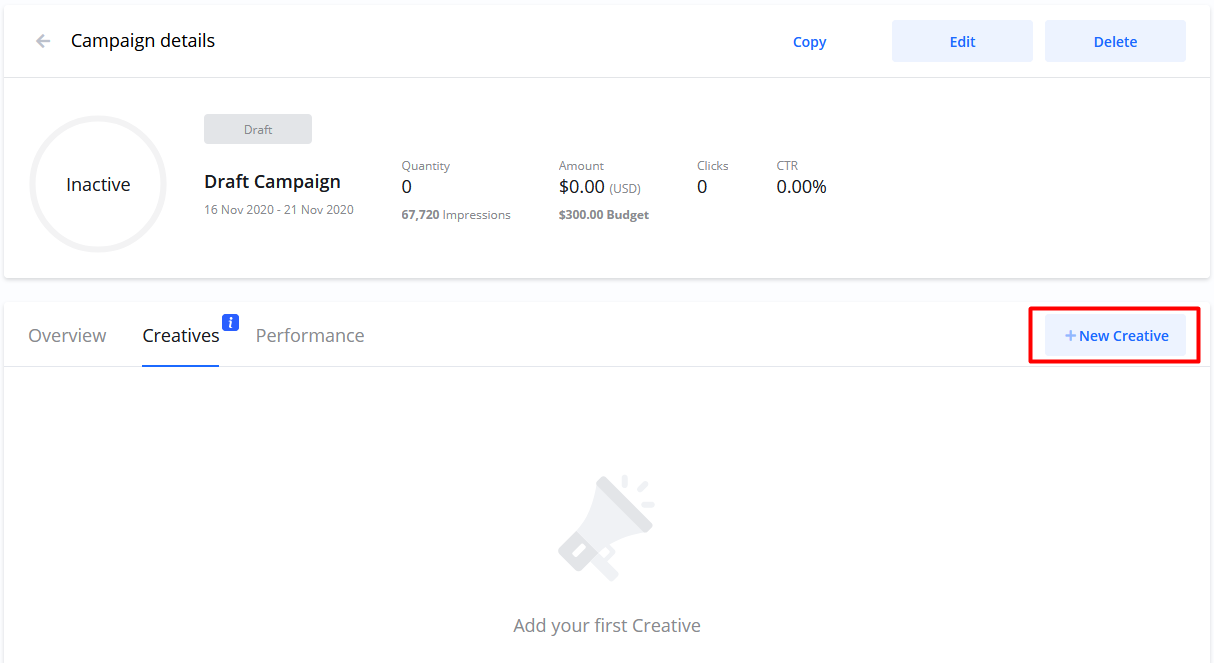
From the Create Campaign wizard, navigate to the Creatives step and select New Creative.

-
From an existing Campaign, go to Campaign details, select the Creatives tab, and select New Creative.
Creative Type
At this step, you choose if you want to create a new ad or use a Creative you have previously used. The available Creative types will change depending on the type of Campaign you are creating.
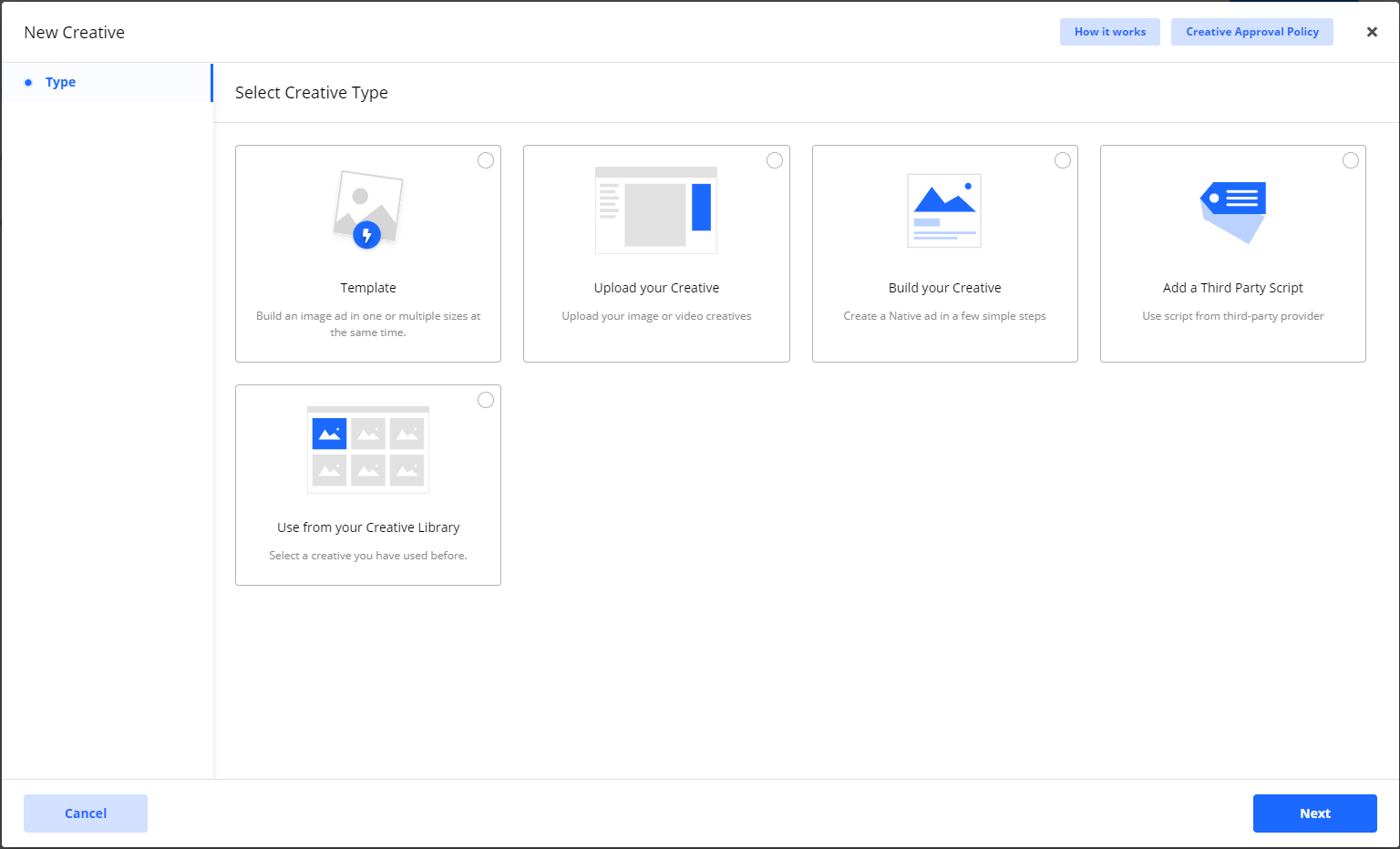
The primary options are listed below.
The selections you make in the Campaign setup automatically make the most suitable Creative types available.
Creative Builder (Image Ads)
By using a template, you can create image ads in different sizes simultaneously. You add texts and images separately and have full control over which sizes you want to use. Creating your ad in multiple sizes is a great way to increase visibility, and ads created this way only need to be approved once. Read more about how to use this tool here.
Creative Builder (Native ads)
Select this option for a fast way to create a native ad that blends into its context. Like the builder for Image ads, you add texts and images separately.
Upload your Creative
This option is for when you already have a finished ad you want to use. You can upload:
-
Image ads: A finished ad containing both image and text. Read about image ads upload here.
-
Video ads (if available): Finished video ads at a fixed length, usually 10, 15, 20, or 30 seconds.
Add a Third Party Script
Choose this when your ad is served by a third-party provider. Learn how to use Third Party scripts here.
Use from your Creative Library
To use an ad you have used before, your Creative Library contains all your previously created Creatives. This is a fast way to add an already approved Creative or to copy and edit a previous ad without starting from scratch. Learn all about your Creative Library here.
Creative statuses
After adding your Creative to your Campaign, each Creative must be approved before it can be shown to audiences. Here are all the Creative statuses and what they mean:
|
Status |
Description |
|---|---|
|
DRAFT |
The initial status when you first add a Creative. |
|
UNDER REVIEW |
The status after a Campaign is confirmed/paid, or when a new Creative is added to an existing confirmed Campaign. The Publisher is notified to review it. |
|
APPROVED |
The Publisher has approved the Creative. You will be notified by email. |
|
REJECTED |
The Publisher has rejected the Creative. You will be notified by email with the reason. You can then copy the Creative to make changes or add a new one. |
|
ACTIVE |
The status for an Approved Creative that is ready to be served after the Campaign start date. You can pause and resume ACTIVE Creatives at any time. |
|
PAUSED |
The status when you manually pause an ACTIVE Creative. The ad will stop being shown. |
|
PROCESSING |
An additional status for uploaded Video Creatives while the Publisher ensures it is entered into the ad server correctly. |
Note on Re-using Creatives: When you use an already Approved Creative from your Creative Library, it will automatically be approved for all new Campaigns where you use it.
When is my Campaign live?
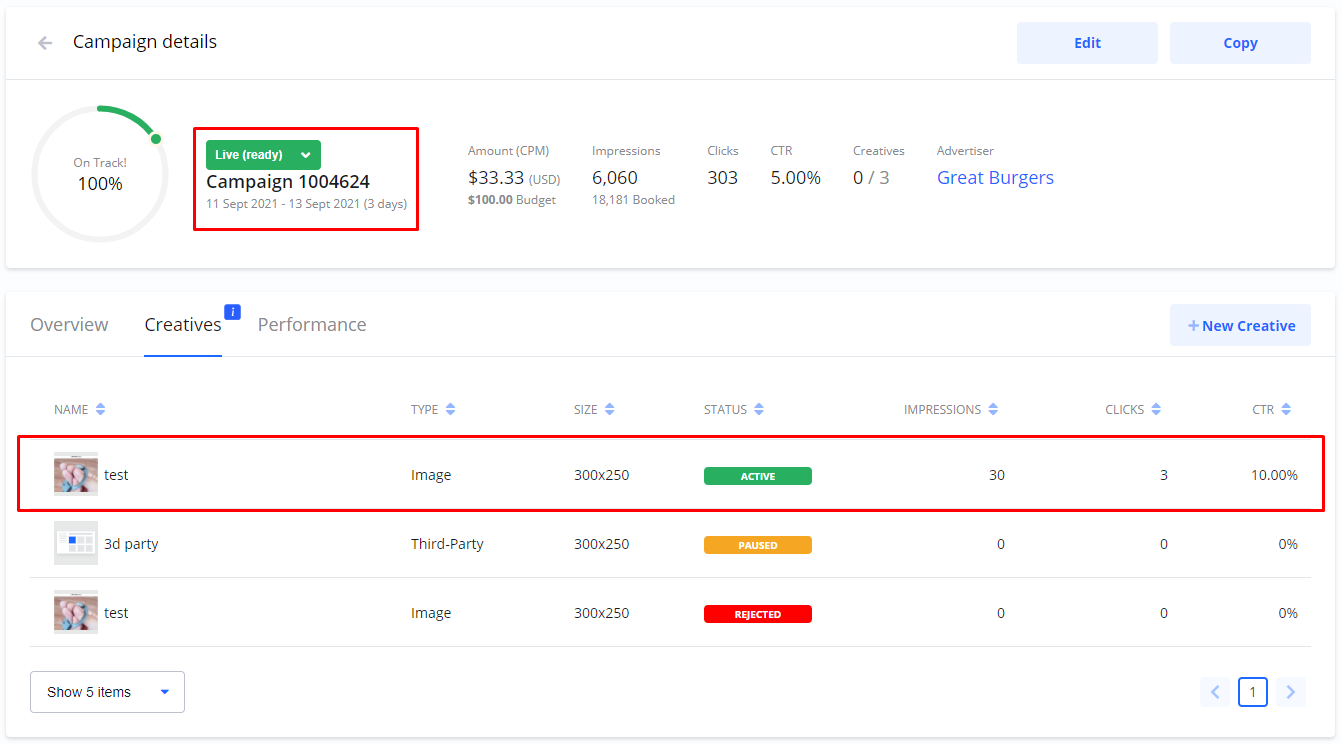
A Campaign will automatically become LIVE when its Start date is reached AND at least one Creative under the Campaign is APPROVED. When a Campaign is LIVE, all ACTIVE Creatives under it will be shown to your audience.
Pause/Resume Creatives
You can pause any ACTIVE Creative at any time, which means the ad will stop being shown to anyone. You can either pause individual Creatives or pause all of them by pausing the entire Campaign.
Pause all Creatives in a Campaign
-
Select a LIVE Campaign you wish to pause.
-
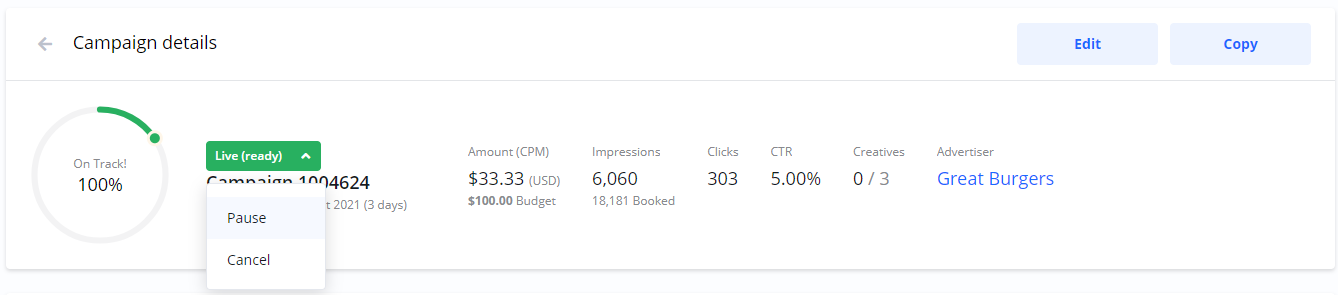
On the Campaign details page, select Pause from the status drop-down menu.
-
The Campaign status changes to PAUSED, and all its Creatives will stop being shown.
Pause individual Creatives
-
Select a LIVE Campaign.
-
On the Campaign details page, select the Creatives tab.
-
Select the Pause icon on any ACTIVE Creative you wish to pause. Its status will change to PAUSED. If this was the only ACTIVE Creative in the Campaign, the Campaign status will also change to PAUSED.
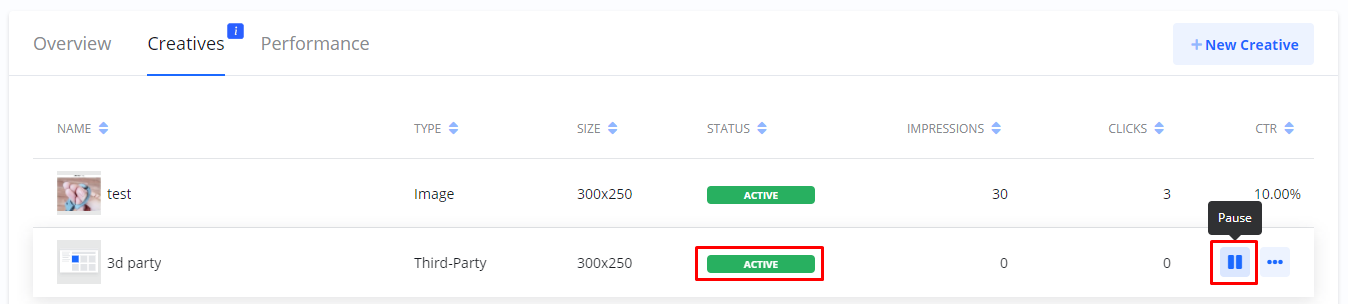
If this was the only ACTIVE Creative in the Campaign, the Campaign status will also change to PAUSED.
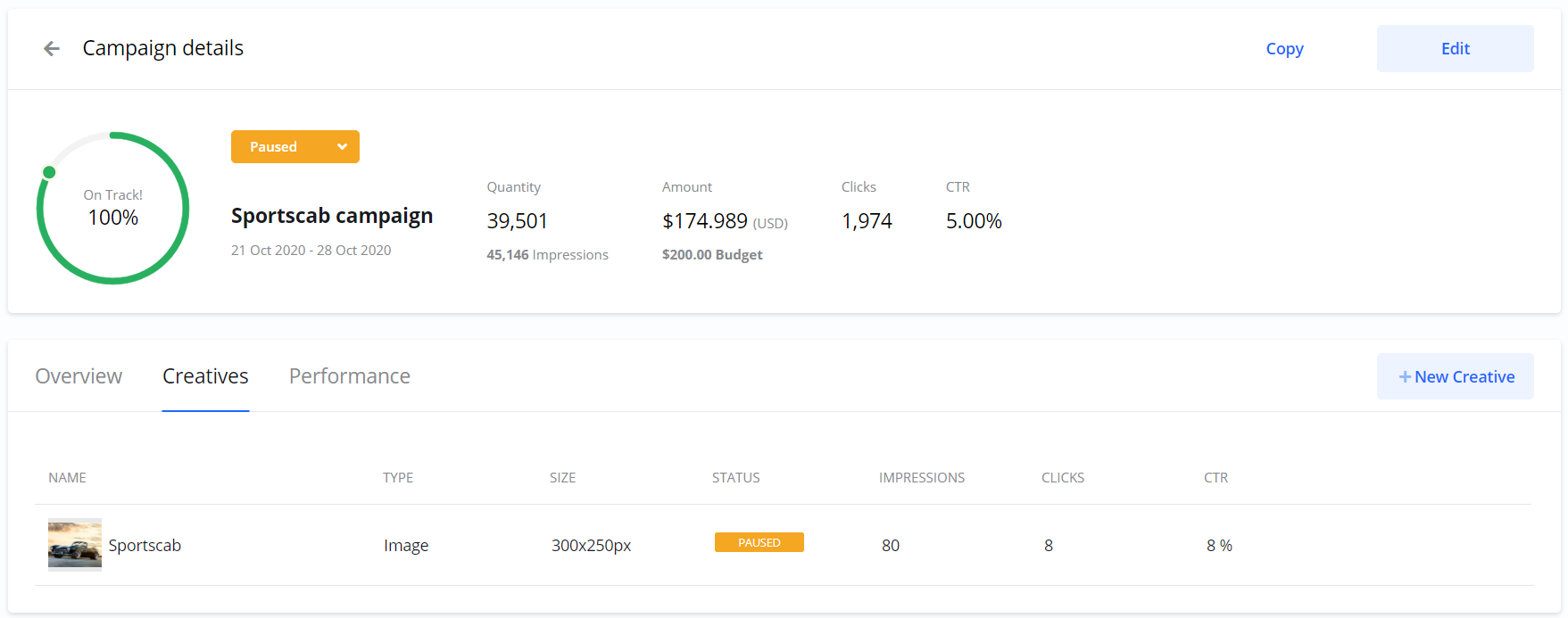
Note on Re-used Creatives: If you have re-used a Creative on multiple Campaigns, pausing it on one Campaign will not affect it on the others. It will continue to be shown on the other Campaigns.
Resume a paused Campaign
-
On any PAUSED Campaign, open Campaign details and select Resume from the status drop-down menu.
-
If the Campaign start date has passed, the Campaign status will change to LIVE, and all its ACTIVE Creatives will start being shown again.
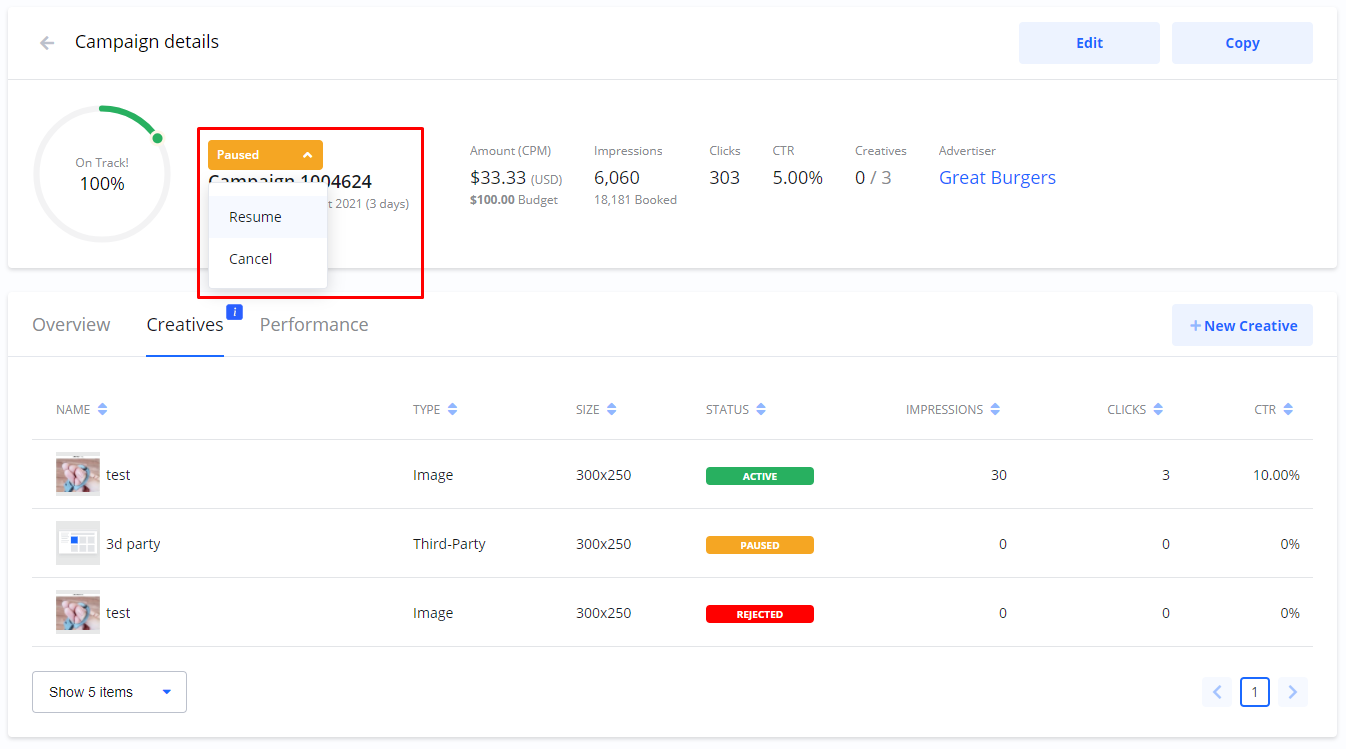
Resume paused Creatives
-
You can Resume a PAUSED Creative at any time. When you do, its status will change back to ACTIVE.
-
However, if the entire Campaign was PAUSED, you must also Resume the Campaign itself from its status drop-down before the Creative will be shown again.

Remember: Paused Campaigns must be resumed by you manually before your ads will be shown again.
Frequently Asked Questions
Q: What is the difference between an ACTIVE Creative and a LIVE Campaign?
A: A Creative is ACTIVE when it has been approved and is ready to be shown. A Campaign is LIVE when its start date has been reached AND it has at least one ACTIVE Creative. A LIVE Campaign is one that is currently showing ads.
Q: If my Creative is rejected, what should I do?
A: You will receive an email explaining the reason for the rejection. You can then either copy the rejected Creative to make the necessary changes or create and add a completely new Creative to your Campaign.
Q: If I pause a Campaign, do I have to resume each Creative individually?
A: No. If you pause the entire Campaign, you only need to resume the Campaign itself. All Creatives that were ACTIVE before will automatically start being shown again.