
Before you can start using the Platform, you have to sign up.
The sign-up process is easy. You will be up and running in a couple of minutes.
When you Sign up, an account with your name, email address and related information is created. You and the Platform’s administrators can manage your account. Only you can change or set your password.
Important: The email address you use when signing up is unique and cannot be used by any other user in the Platform.
If you wish to change your email address, you can send a request to support@danads.com.
Sign up
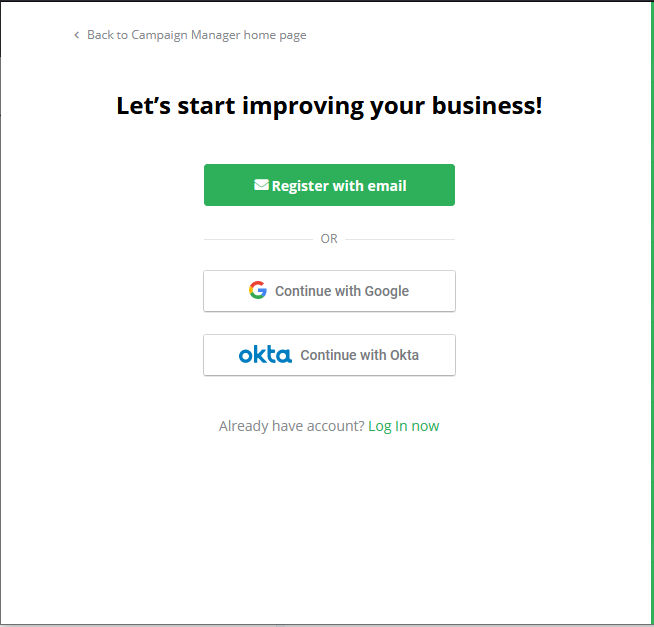
You can sign up as either an Advertiser or an Agency.
-
An Advertiser creates Campaigns for their own business.
-
An Agency creates Campaigns on behalf of its Clients.
Email Registration Process
-
From the landing page, click Get Started or Create Account.
-
Select the account type that fits your business: Direct Advertiser or Agency.
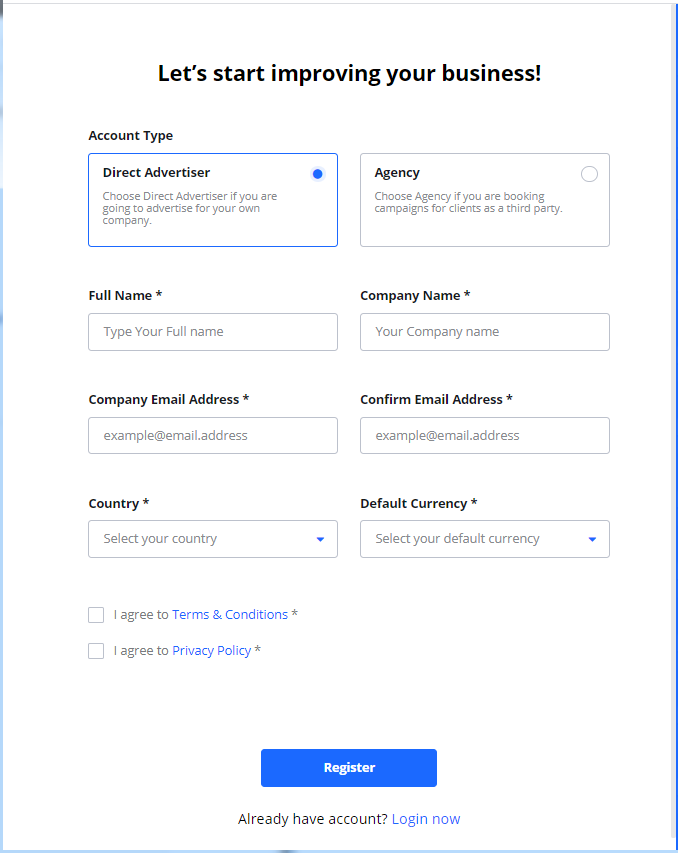
Depending on how the platform is setup you will see different options above.
-
Enter the required information in the registration form:
-
Full Name
-
Company Email Address
-
Company Name
-
Country
-
Default Currency
-
-
Review and accept the Terms and Conditions, Cookie Policy, and Privacy Policy.
-
Click Register. A confirmation email will be sent to the email address you provided.
-
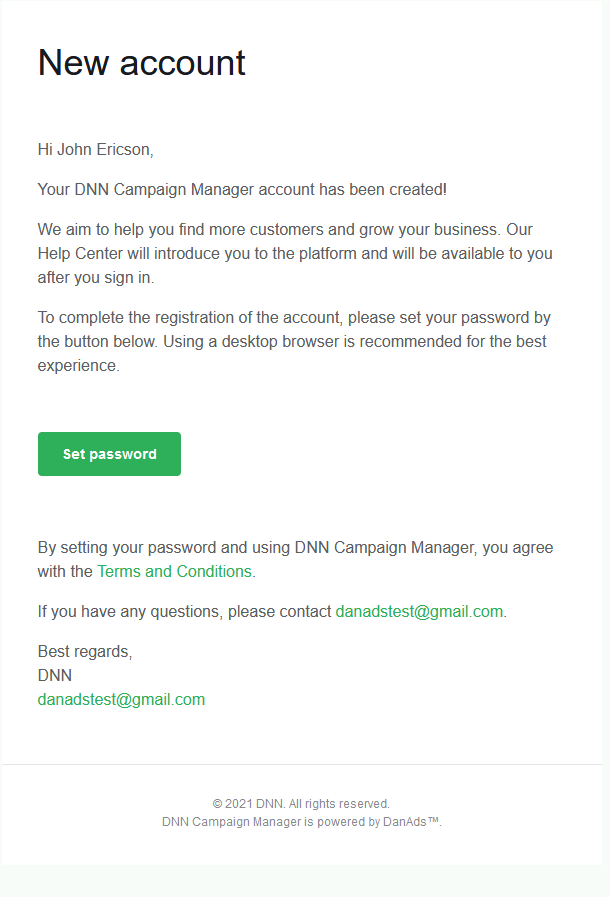
Locate the confirmation email in your inbox and click the Set password link. Note: This link expires after 24 hours.
-
On the password creation page, enter your new password in both fields and click Set password. Your password must contain a minimum of 8 characters.
-
If prompted, complete the reCAPTCHA validation. If this validation fails, you will be unable to log in and must try again.
-
Upon successful registration, you will be logged in and redirected to the Dashboard.
Sign-up and Login with Google
If the Platform is setup for single-sign-on with Google you can use your Google account to sign up and login.
Log In
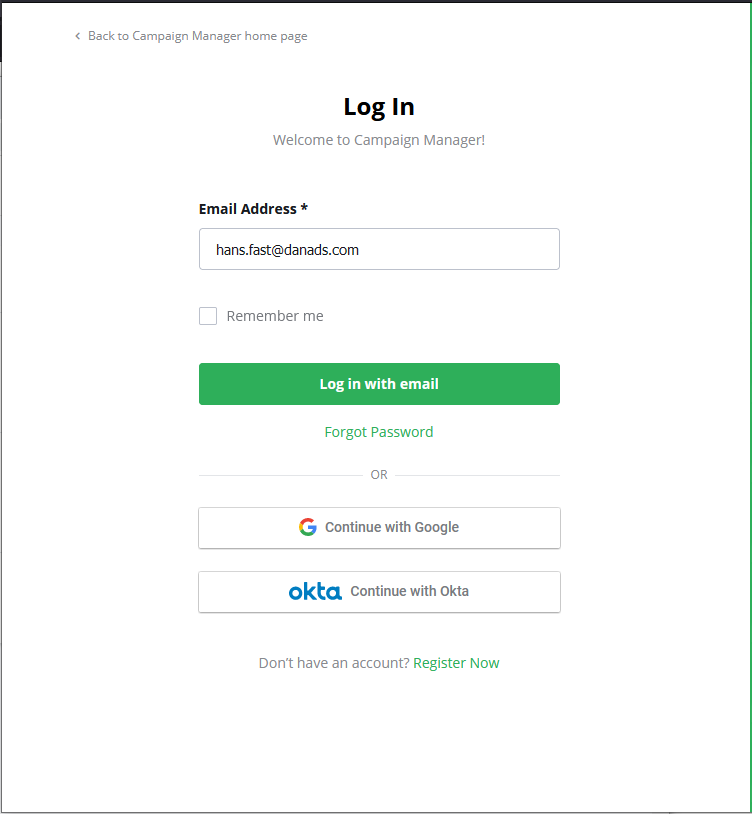
If you have an active account, you can log in to the Platform.
-
Enter your registered Email Address and Password.
-
Click Submit.
-
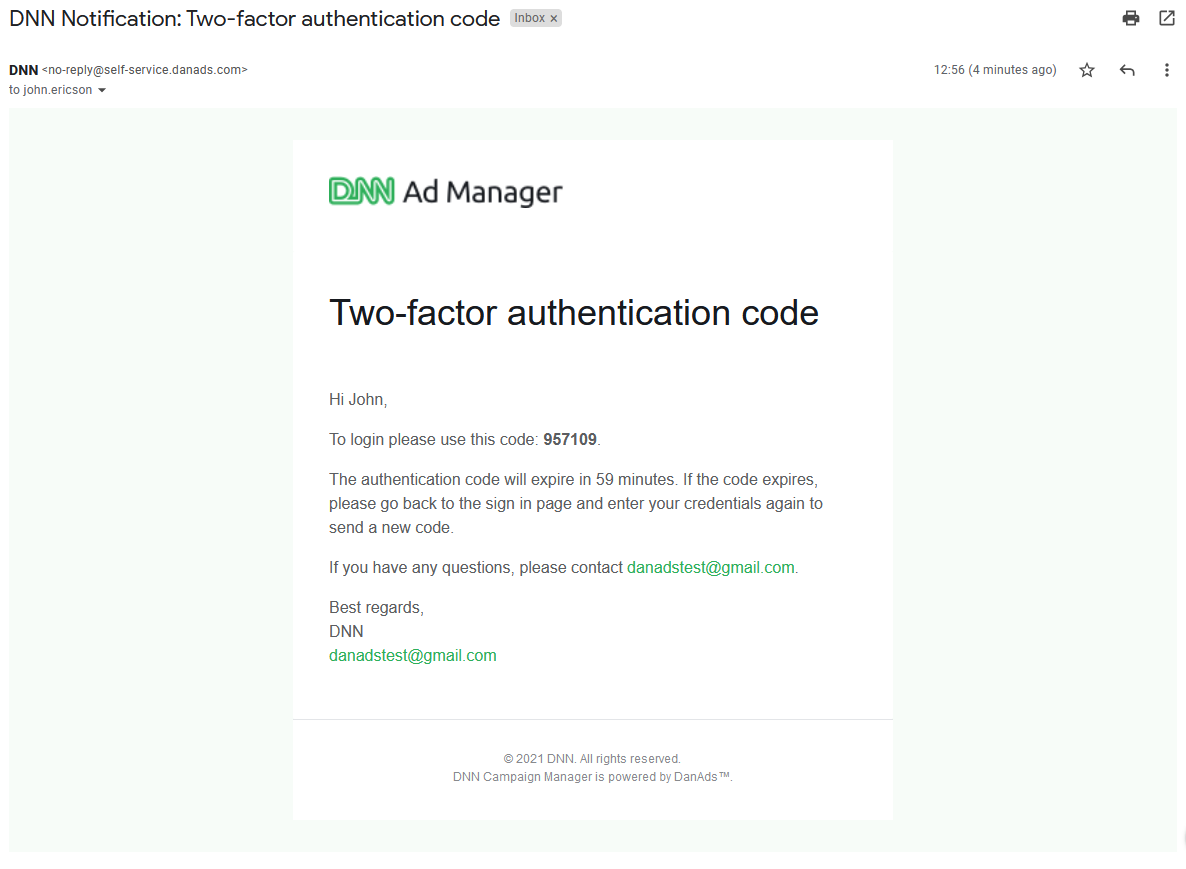
If Two-Factor Authentication (2FA) is enabled for your account, an access code will be sent to your email address.
-
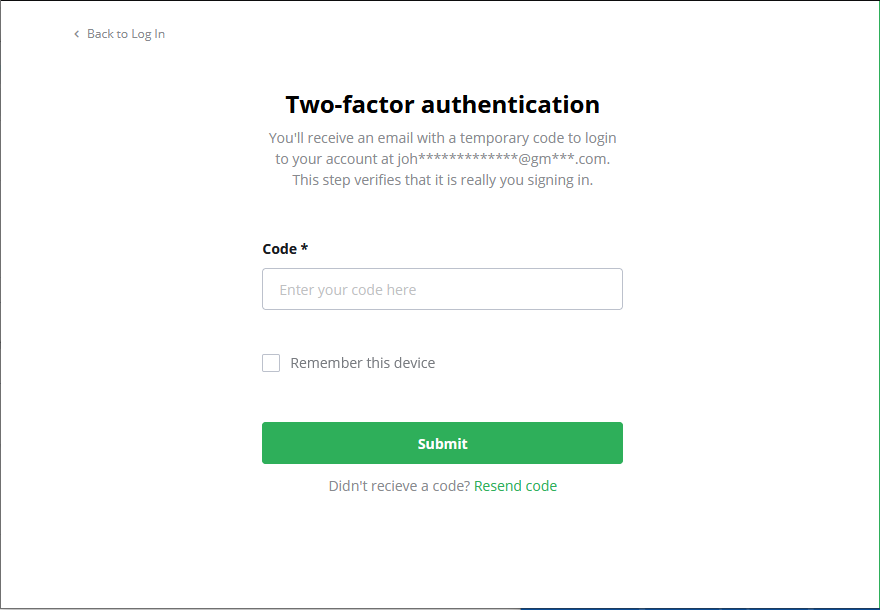
Enter the code from the email on the verification screen and click Submit to complete the login.
Note on 2FA:
-
If you do not receive a code, please check your spam folder or click Resend code.
-
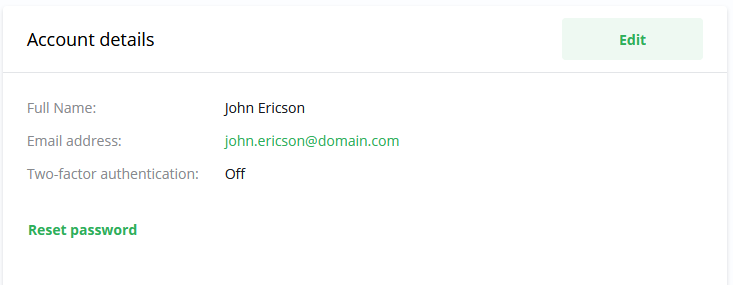
You can typically manage this feature in your Account details. If the option is not visible or is disabled, it means 2FA has been either disabled or enforced as a mandatory setting by a Platform administrator.
Common Login Issues
|
Issue |
Description & Solution |
|---|---|
|
Login Error |
This occurs if the entered credentials do not match an account. Please double-check the spelling of your email and password. If the issue persists, use the "Forgot password" process. If you are still not allowed access, please contact your system administrator. 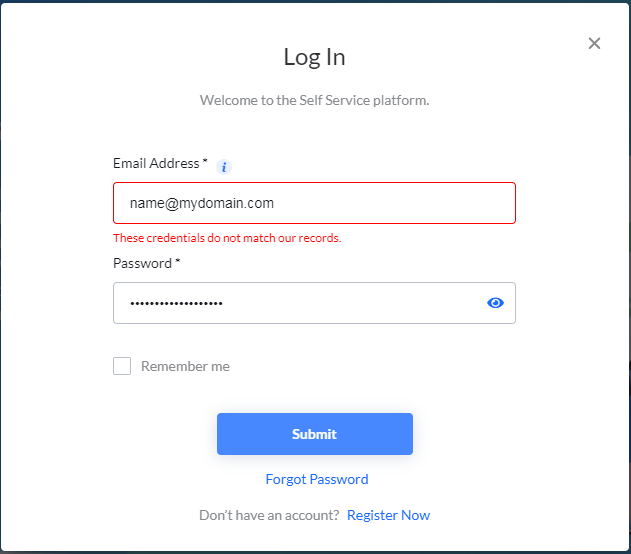
|
|
Session Logout |
For security reasons, the Platform automatically logs you out after a period of inactivity. To continue, simply log back in. If you were creating a new Campaign, it will be saved with a "Draft" status on the Dashboard. 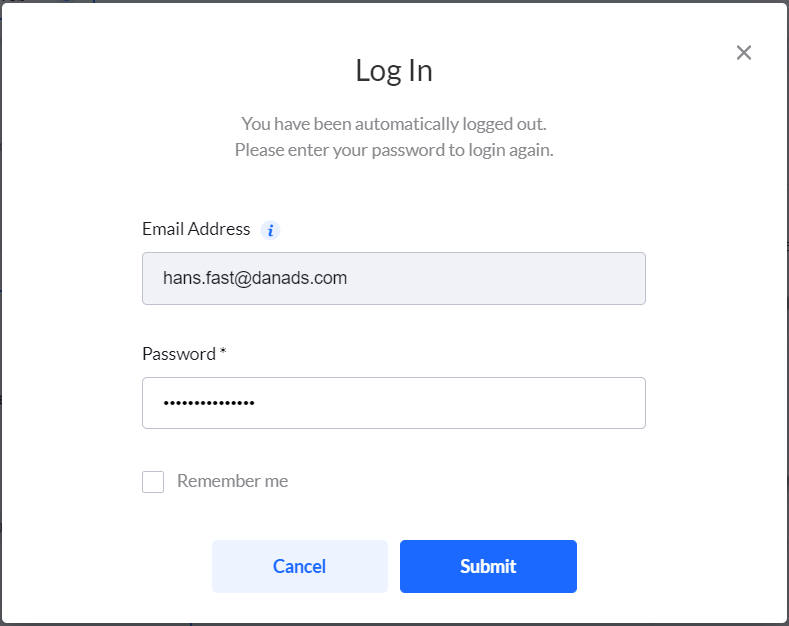
|
Change your password / Forgot password
Fact of life, sometimes you forget your password. No worries, if you forget your password you can reset it.
-
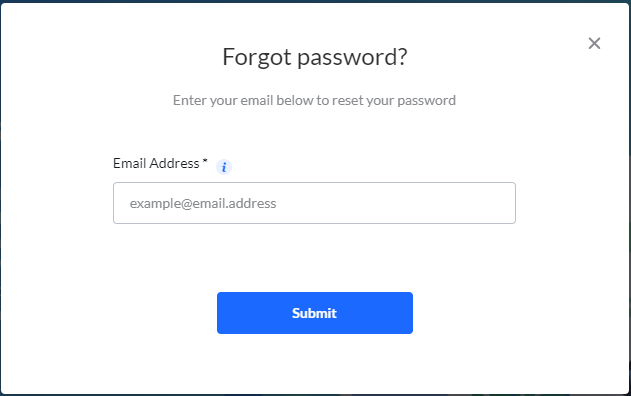
In the login page, select Forgot Password.
-
Enter you Email Address.
-
Click Submit.
-
You will receive an email with a link to Set new password.
-
In the email, click Set new password.
You will be redirected to the Platform. -
Enter your new password.
-
Click Reset password.
-
You are logged in and redirected to the Dashboard.
Frequently Asked Questions
Q: How long do I have to set my password after signing up?
A: The "Set password" link sent to your email upon registration is valid for 24 hours.
Q: What are the password requirements?
A: Your password must contain a minimum of 8 characters.
Q: What happens if my session times out while I am working?
A: You will be logged out for security, but your work will be saved. A new Campaign will be saved as a "Draft" on your Dashboard.