
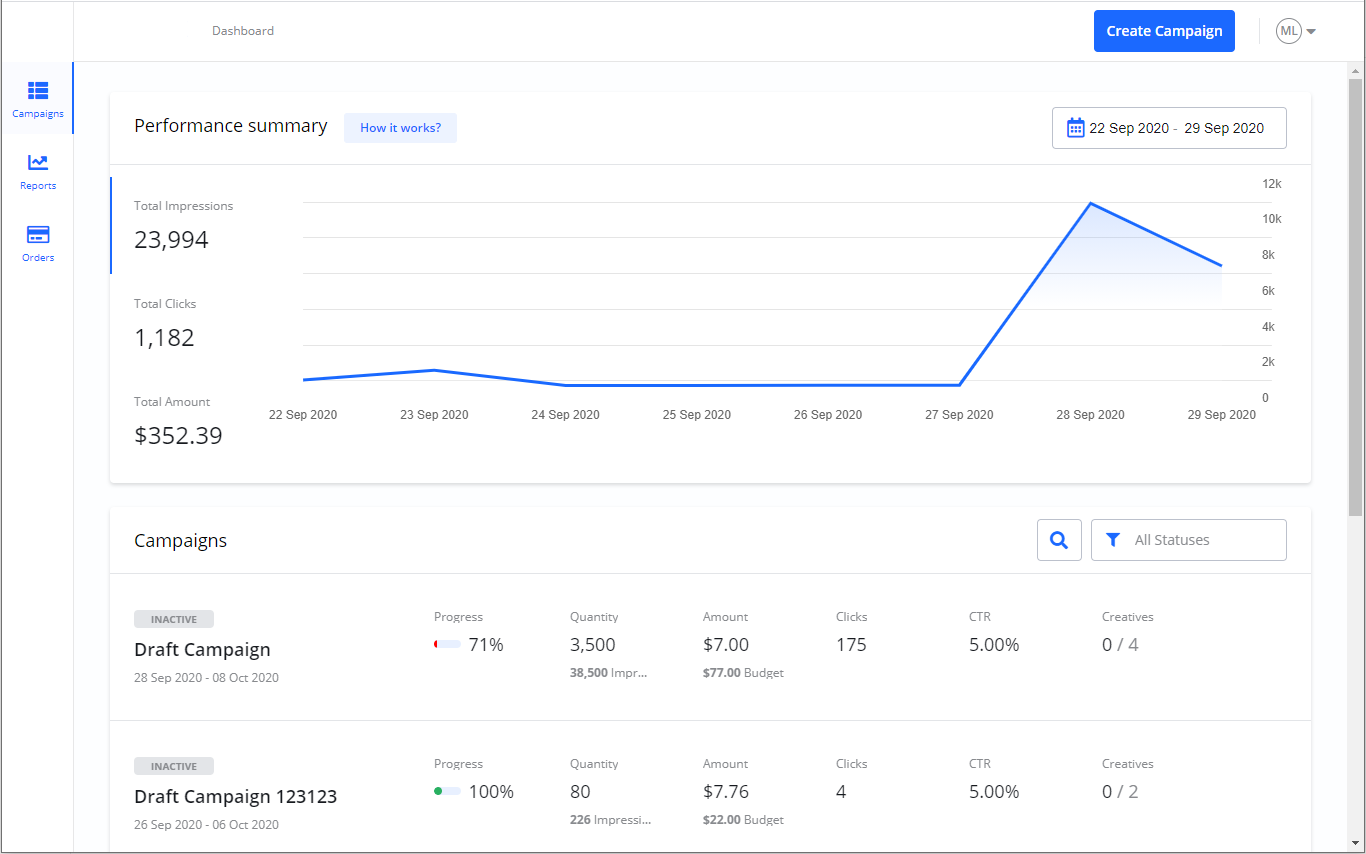
The Campaigns Dashboard is the first page you see after you log in. This page provides a complete summary of all your Campaign statuses and their performance.
Campaign list
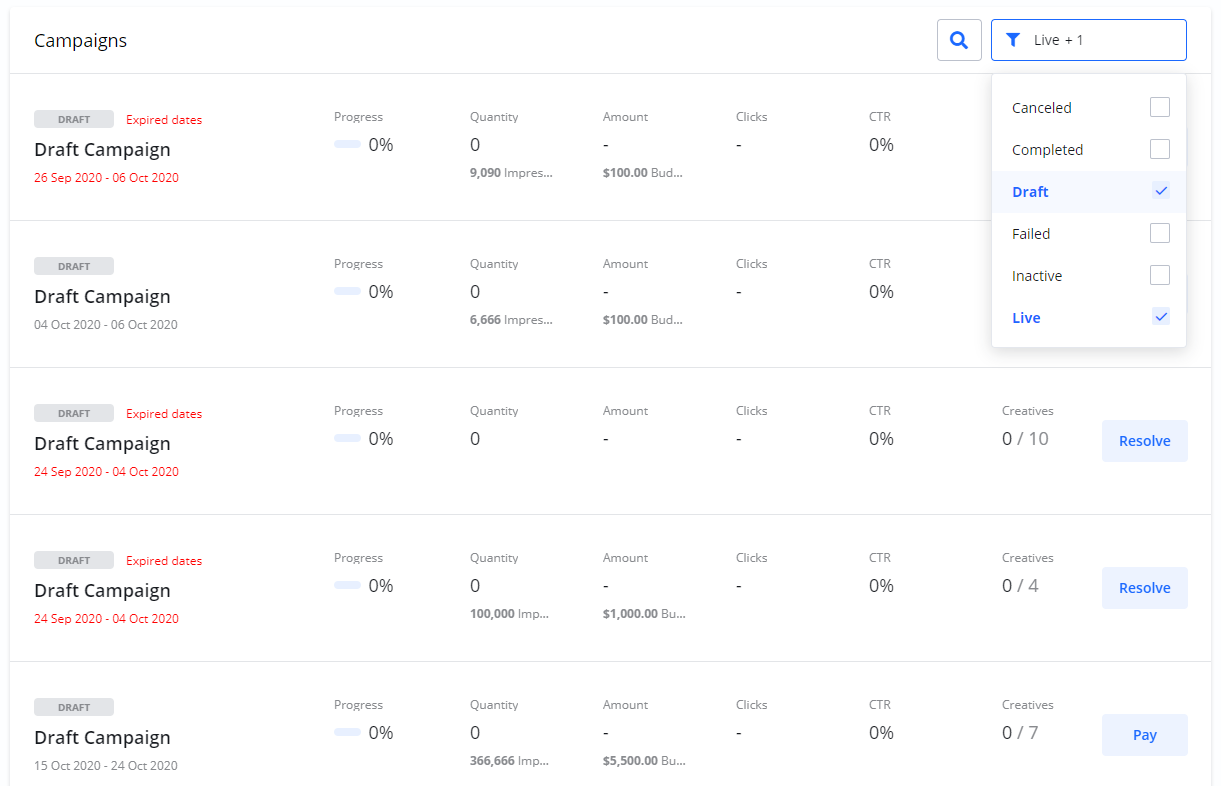
In the Campaign list, you can search and filter to find specific Campaigns.
Campaign status
Each of your Campaigns has a status. The most important statuses are defined below:
|
Status |
Description |
|---|---|
|
Draft |
The initial status for Campaigns that are not yet confirmed and checked out. |
|
Pending |
Confirmed Campaigns that are waiting for at least one approved Creative or are waiting for their start date. |
|
Live |
Campaigns that are currently running. |
|
Paused |
Campaigns which you have manually paused. Paused Campaigns do not show ads. |
|
Cancelled |
Campaigns that have been cancelled by you. |
|
Completed |
Finished Campaigns where the end date has passed and all statistics have been reported. |
|
Processing |
A temporary status that can occur during payment processing or other long-running operations. If this status does not change, please contact support. |
|
Failed |
If you see this status, something has gone wrong. Please contact support. |
Edit and Pay from list
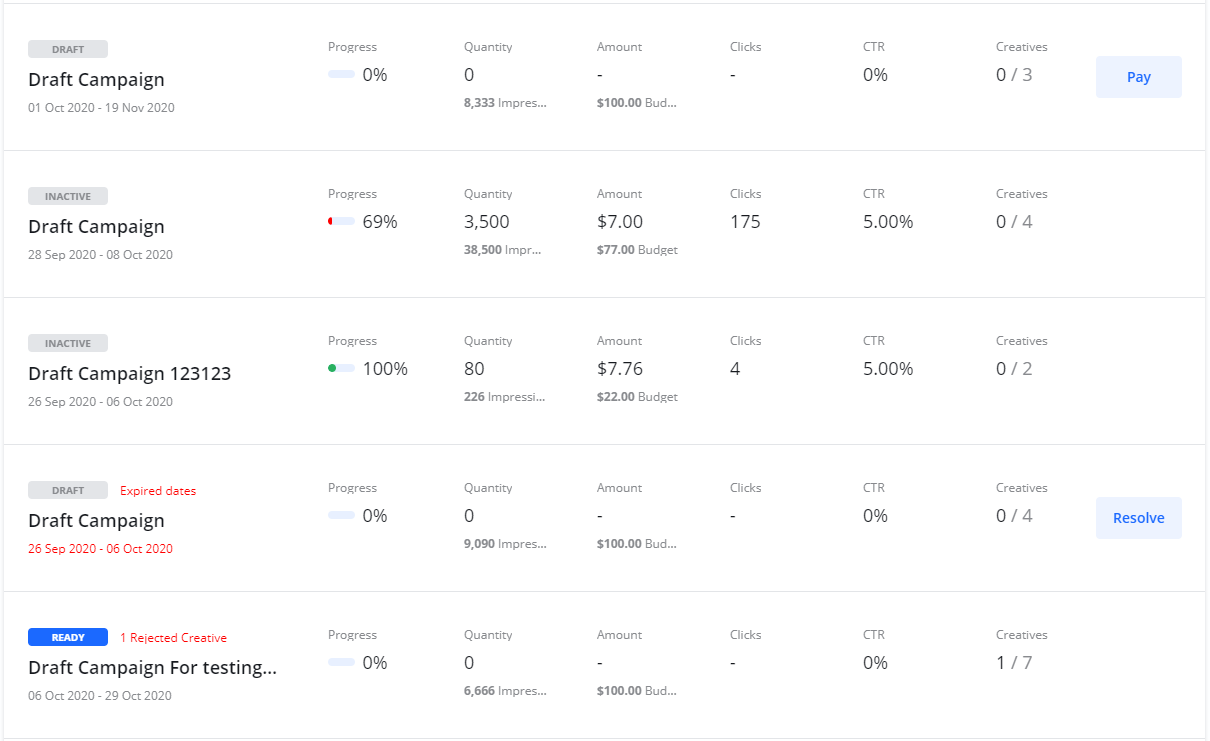
From the list of Campaigns, you can use the Pay and Edit buttons for quick navigation:
-
Pay: This opens your Campaign in the payment section. Read more about this under Checkout and Payment - Multiple Campaigns.
-
Edit: This opens the Campaign in edit mode, where you can modify the Campaign or resolve conflicts.
Resolve problems
Warning messages will describe any conflicts or problems with your Campaigns. To resolve these issues, either select Edit from the Campaign list or open the Campaign details page.
|
Problem / Warning |
How to Resolve |
|---|---|
|
Expired dates |
The Campaign's start date has passed. Select Edit to set a new start date. |
|
No Creatives / No Creatives approved |
The Campaign is approaching its start date without any approved Creatives. Select Edit > Creatives > New Creative to add a new Creative. |
|
Rejected Creatives |
A Creative has been rejected. The rejection reason will be in the notification. Resolve this by adding a new, corrected Creative via Edit > Creatives > New Creative. |
|
Payment issue |
For subscription Campaigns, this indicates a problem with your payment method. The Campaign is automatically paused. Resolve this via Campaign details > Payment issue > Payment method or Order details > Payment issue > Payment method to update your payment information. |

Frequently Asked Questions
Q: What is the difference between a 'Pending' Campaign and a 'Live' Campaign?
A: A Pending Campaign is one that has been confirmed but is not yet running, either because it's waiting for its start date or because it doesn't have any approved Creatives. A Live Campaign is one that has met all its conditions and is actively running.
Q: My Campaign has a "Payment issue." Are my ads still running?
A: No. When a subscription Campaign has a payment issue, it is automatically paused, and your ads will not be shown until you update your payment information and resume the Campaign.
Q: How do I fix a Campaign that has "Rejected Creatives"?
A: You must add a new, corrected Creative to the Campaign. A Campaign cannot go live unless it has at least one approved Creative.