
The Campaign details page provides a complete overview of a single Campaign. To access this page, click on any Campaign from the main dashboard.
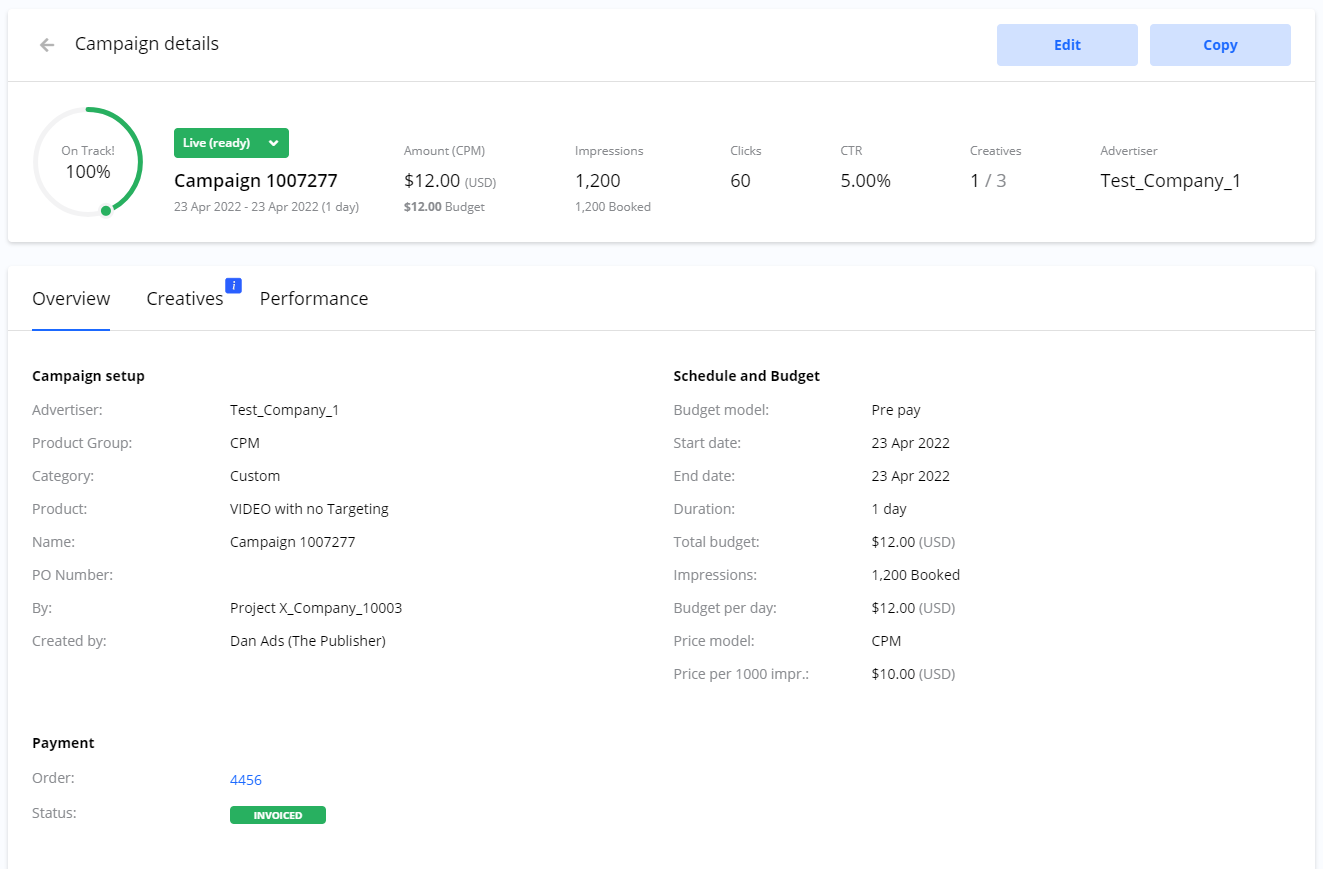
From this page, you can review and manage all aspects of your Campaign, which are organized into several sections and tabs.
Key Information Sections
The main body of the page contains the core setup information for your Campaign, including:
-
Campaign setup
-
Schedule and Budget
-
Targeting
-
Payment
Creatives Tab
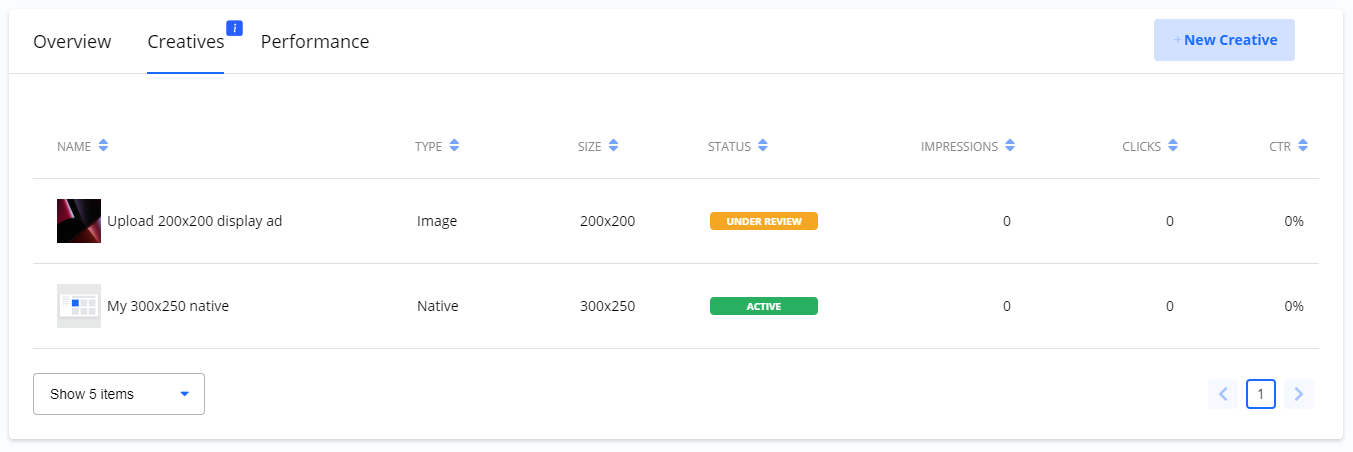
The Creatives tab lists all the individual ads (Creatives) that are associated with this Campaign. Here, you can also see the current approval status for each Creative (e.g., Approved, Rejected, Active).
Performance Tab
The Performance tab contains detailed charts and statistics that show you how your Campaign is performing.
Read all about Campaign Performance and Statistics here.
Frequently Asked Questions
Q: Where can I see all the ads that belong to my Campaign?
A: You can find a complete list of all ads for a specific Campaign under the Creatives tab on the Campaign details page.
Q: How do I change the targeting for my Campaign?
A: The Targeting section on the Campaign details page shows your current targeting settings. You can typically edit them by entering the Campaign's edit mode.
Q: Where can I find performance graphs and statistics for my Campaign?
A: All performance-related data, including charts and key metrics, is located under the Performance tab on the Campaign details page.