You manage your details and account information under the Account icon > Profile

Your Account Profile: Account Tab
The Account tab within your Account Profile page is where you can manage your core company and personal account settings. This ensures your information is accurate and your Platform experience is tailored to your preferences.
The Account tab is organized into several distinct sections.
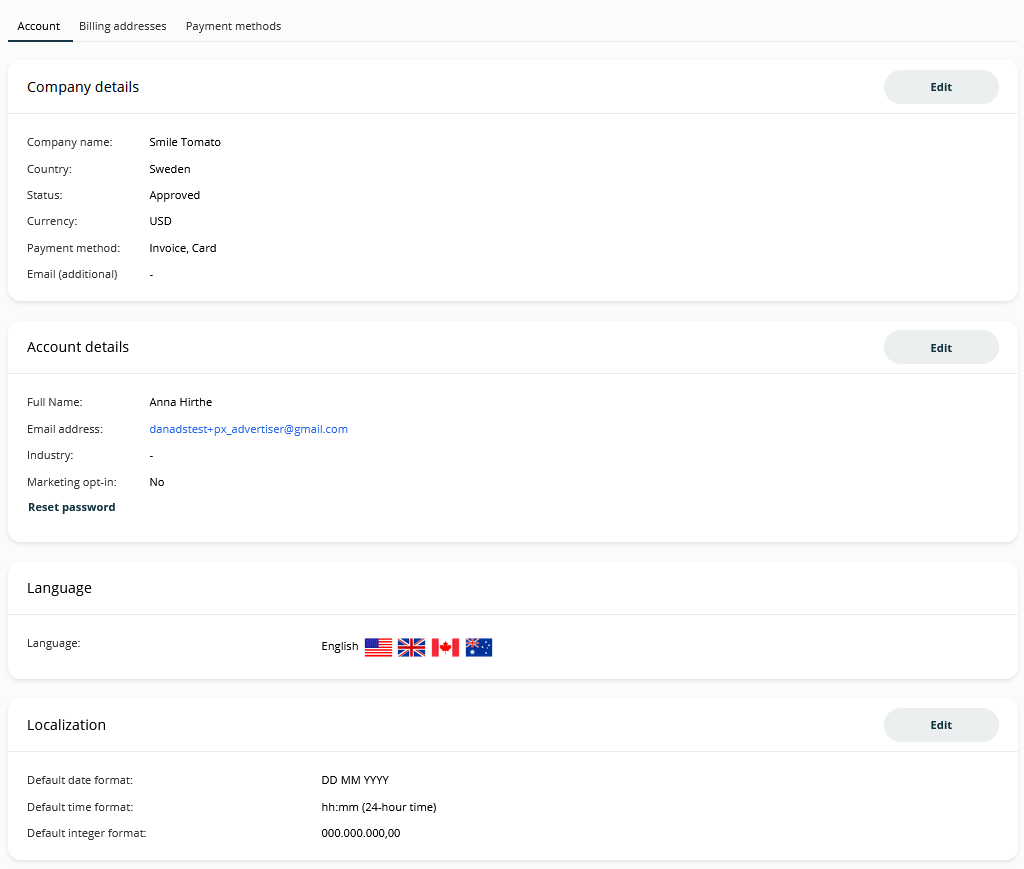
Company details
This section displays essential information about your company as registered in the Platform:
|
Field |
Description |
|---|---|
|
Company Name |
Your company's official name. |
|
Country |
The country your company is based in. |
|
Status |
The current status of your company's account within the Platform. |
|
Currency |
The primary currency used for your transactions and reports. |
|
Payment Method |
Your default payment method configured for Campaigns. |
|
Email (additional) |
Any additional email addresses associated with your company for communications. |
You can click the Edit button in this section to update your company's details if needed.
Account details
This section pertains to your individual user account within the Platform:
|
Field |
Description |
|---|---|
|
Full Name |
Your full name. |
|
Email address |
The email address associated with your login. |
|
Industry |
The industry your company operates in. |
|
Marketing opt-in |
Indicates your preference for receiving marketing communications. |
|
Reset password |
A link to initiate the password reset process for your account. |
Click the Edit button in this section to modify your personal account information.
Language
This section allows you to set your preferred display language for the Platform interface:
|
Field |
Description |
|---|---|
|
Language |
Select your desired language. The Platform supports various languages, indicated by flag icons. |
Localization
Customize how dates, times, and numbers are displayed in the Platform to match your regional preferences:
|
Field |
Description |
|---|---|
|
Default date format |
Choose your preferred format for dates. |
|
Default time format |
Select your preferred format for time. |
|
Default integer format |
Define how large numbers are formatted. |
An Edit button is available in the Localization section to adjust these display settings.
Your Account Profile: Billing Addresses Tab
The Billing addresses tab allows you to manage all the billing addresses associated with your account. This is essential for ensuring that your invoices and financial communications are sent to the correct locations.
Your billing addresses are displayed as individual cards. You can have multiple addresses, and one will be designated as the DEFAULT address for your account, typically used for primary invoicing.
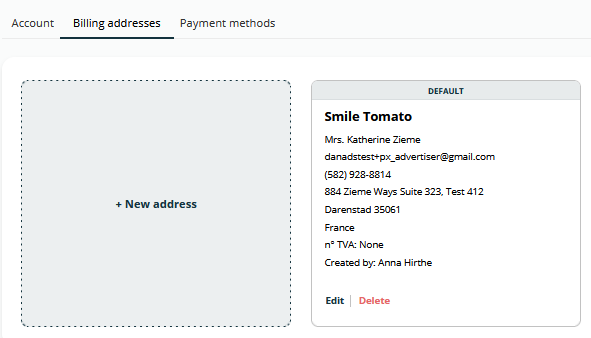
Each address card provides comprehensive details:
-
Company/Recipient Name: The name of the company or the individual associated with the billing address.
-
Contact Email & Phone: The primary contact email and phone number for this address.
-
Full Address: The street address, city, postal code, and country.
-
VAT/TVA Number: Your Value Added Tax (VAT) number, if applicable.
-
Created by: The user who initially added this billing address to the system.
Actions for Billing Addresses
-
+ New address: Click the + New address card to add a new billing address to your account.
-
Edit: For an existing address, click Edit to modify its details.
-
Delete: To remove an address, click Delete.
Your Account Profile: Payment Methods Tab
The Payment methods tab is where you securely manage the credit and debit cards you use for your advertising campaigns. Keeping your payment methods up-to-date here ensures smooth and uninterrupted campaign billing.
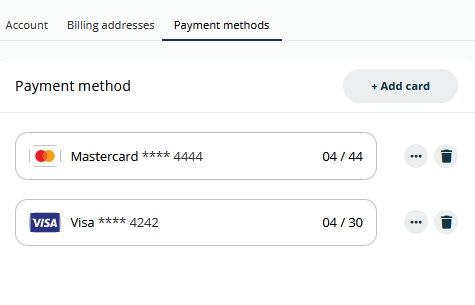
Your registered payment methods are displayed in a clear list format.
-
Card Type: The type of card accompanied by its respective logo.
-
Last Four Digits: The last four digits of the card number for easy identification.
-
Expiration Date: The month and year the card expires.
Adding a New Payment
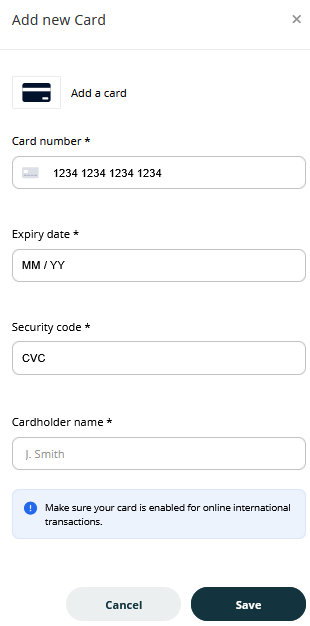
To add a new credit or debit card, click the + Add card button located in the top-right corner of this section. You will then be prompted to enter the necessary card details securely.
Actions for Existing Payment
When you click the three-dot menu icon next to a saved payment method on the Payment methods tab, a Card details dialog will open. This dialog allows you to view the basic information associated with that specific card and provides an option to delete it.
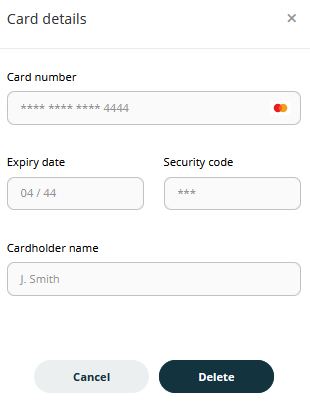
Click Cancel to close the dialog without making any changes. To permanently remove this payment method from your account, click the Delete button. Please confirm that no active campaigns are currently billing to this card before proceeding with deletion.
Frequently Asked Questions
Q: How do I change my password?
A: To change your password, use the "Reset password" link found in the "Account details" section of your profile.
Q: Can I change the display language of the platform?
A: Yes. In the "Language" section, you can select your preferred display language for the interface.
Q: Where can I change the date format?
A: You can customize how dates, times, and numbers are displayed in the "Localization" section. Click the "Edit button" to adjust these settings.