
If you want to create your ad from a single image or video file that you have already created, you can do so by using the option Upload your Creative.
You can add Creatives from two main locations: either from the Create Campaign wizard or under Campaign details > Creatives.
How to Upload an Image Ad
-
Select New Creative.
-
Under Creative Type, select the option appropriate for your Campaign. For image and video Creatives, select Upload your Creative.
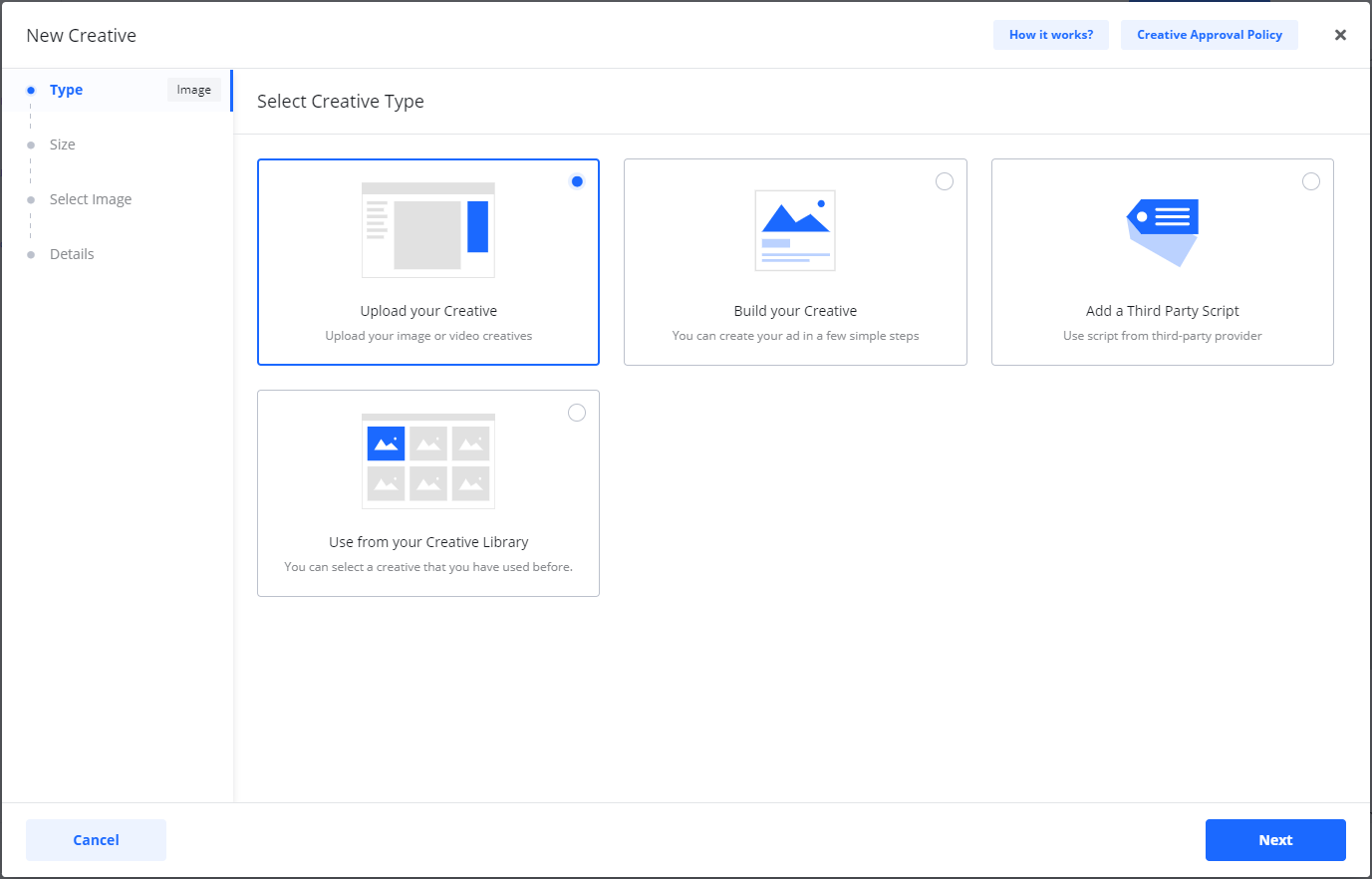
Note: If the type of Creative you are looking for is not available, check the previous step in the wizard to see which Available Creatives are supported for your selected Product.
-
Select the Format (ad size).
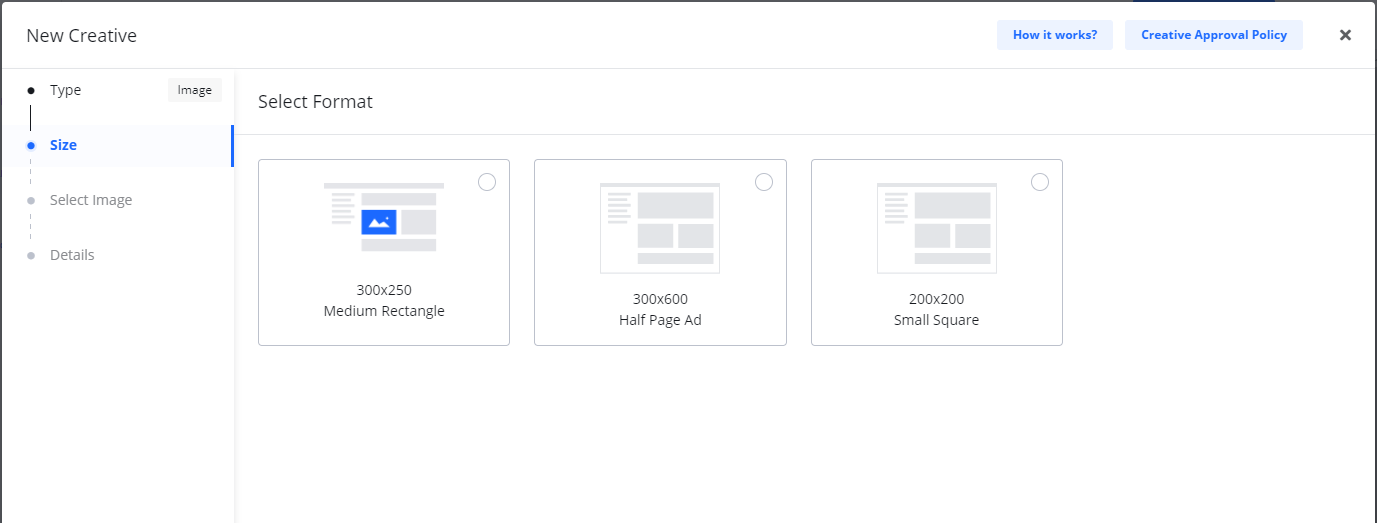
Note: If the format you are looking for is not available, check the Campaign setup step in the wizard to see which Creative formats are available for your selected Product. -
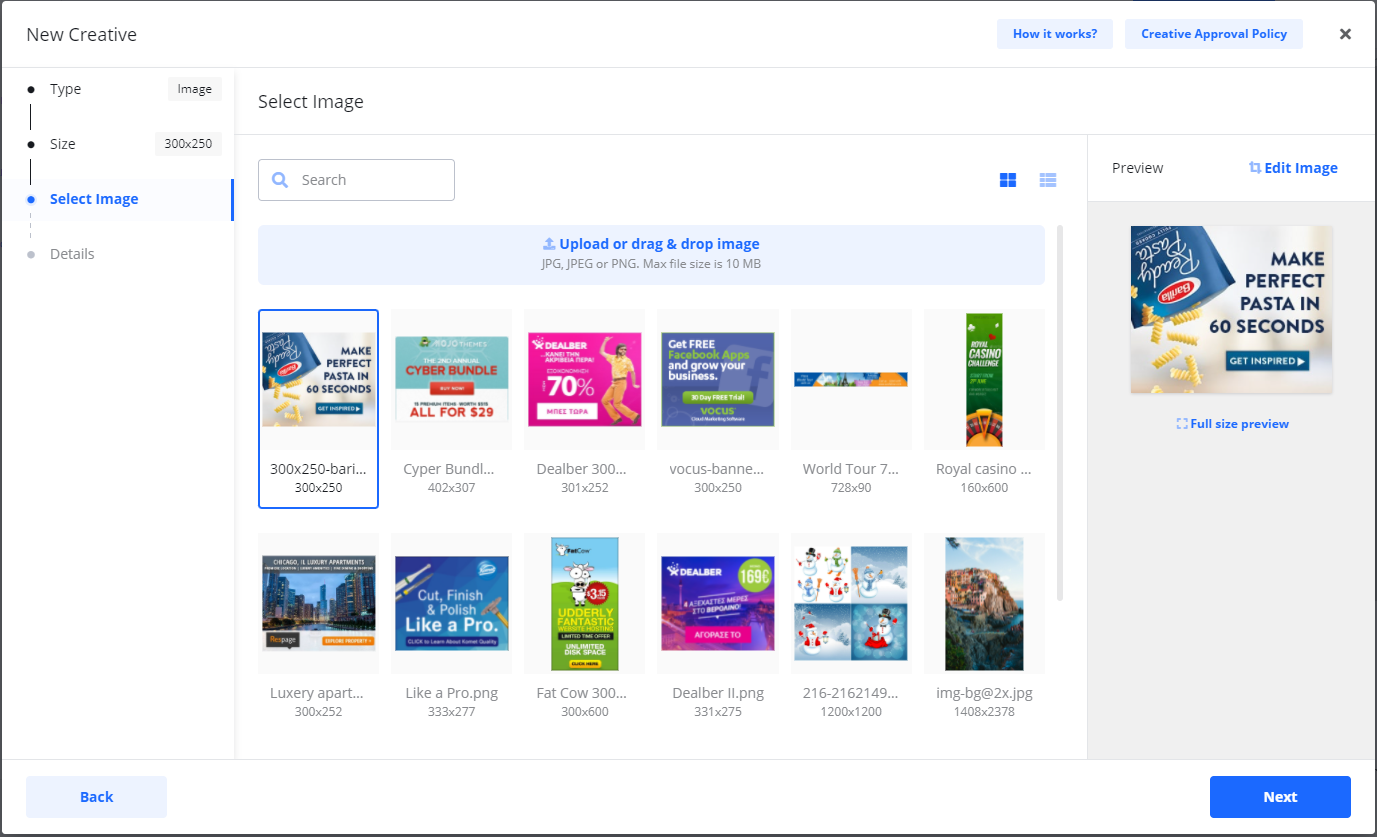
Select the image for your ad. You can:
-
Upload an image from your computer.
-
Drag an image from your desktop.
-
Select an image from your previously used images.
-
-
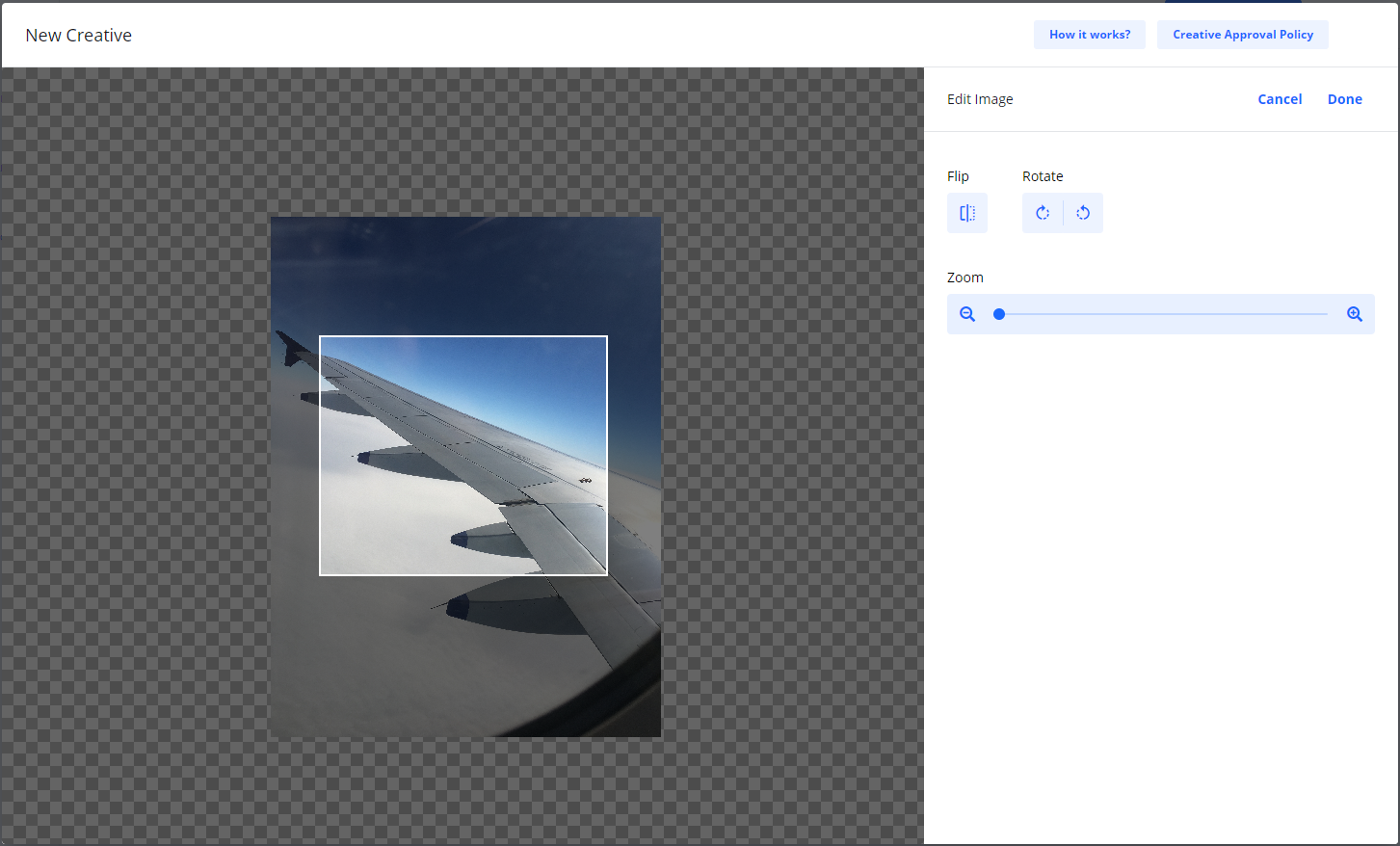
You can adjust and crop the image by using the Edit image link.
-
Click Next.
-
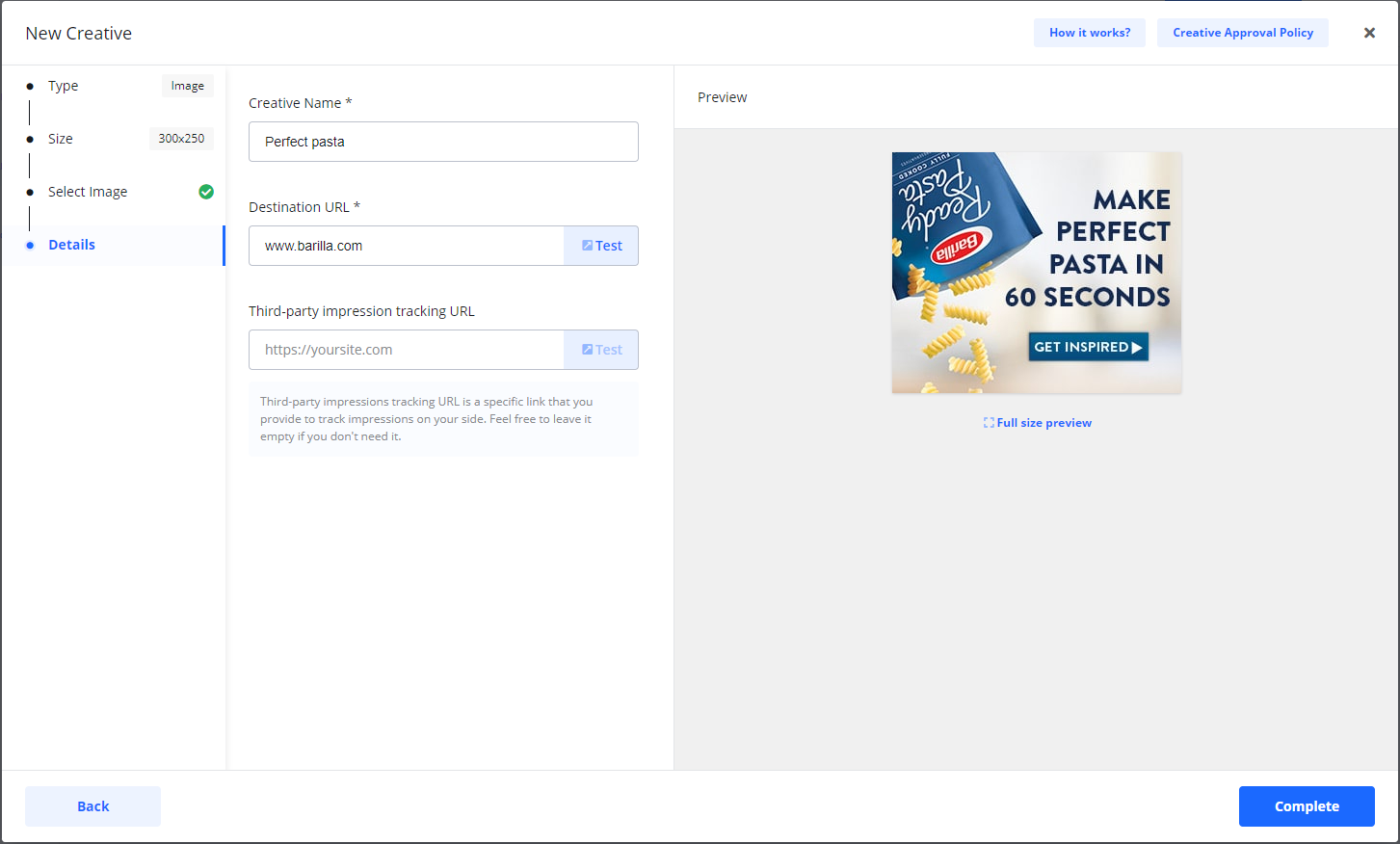
On the Details page, add the required information:
|
Field |
Description |
|---|---|
|
Creative Name |
An internal name for the Creative that only you will see. |
|
Destination URL |
The page your audience will be redirected to when they click your ad. |
|
Third-party tracking URL |
An optional field for adding a tracking URL. |
-
Select Complete when you are done.
Your new Creative will now appear in the list for your Campaign.

Creative statuses:
-
If your Campaign is checked out by card or set for invoice payment, the status for new Creatives will be Under Review. Creatives with this status are automatically sent for approval.
-
If you have not yet checked out the Campaign, the status of new Creatives will be Draft.
When you check out a Campaign, Draft Creatives under the Campaign will change status to Under Review and is sent for approval.
Creative Statuses After Upload
The status of your new Creatives depends on the status of your Campaign:
|
Creative Status |
Condition |
|---|---|
|
Under Review |
This status is set if your Campaign has already been checked out (paid by card or invoice). The Creative is automatically sent for approval. |
|
Draft |
This status is set if you have not yet checked out the Campaign. The status will change to Under Review after you check out the Campaign. |
Power tip for image ads!
By adding Creatives in as many of the available sizes as possible, your Campaign has a higher chance of reaching its goal.
For a more efficient workflow, check out our Creative Builder. This tool allows you to create multiple image ads in different sizes at the same time from a single template, which can greatly increase your ad's visibility and performance.
Frequently Asked Questions
Q: When should I use the 'Upload your Creative' option?
A: You should use this option when you have a finished, single ad file (like a .jpg, .png, or .gif) that is already designed and ready to be uploaded.
Q: The ad size I need isn't in the 'Format' list. What should I do?
A: The available formats are determined by the Product you chose during the initial Campaign setup. If a size is missing, you may need to go back to the Product selection step and choose a different Product that supports your required size.
Q: How is this different from the Creative Builder?
A: Upload your Creative is for uploading one single, pre-made ad file at a time. The Creative Builder is a tool that lets you design an ad from scratch and automatically generates it in multiple different sizes at once.